


.webp)

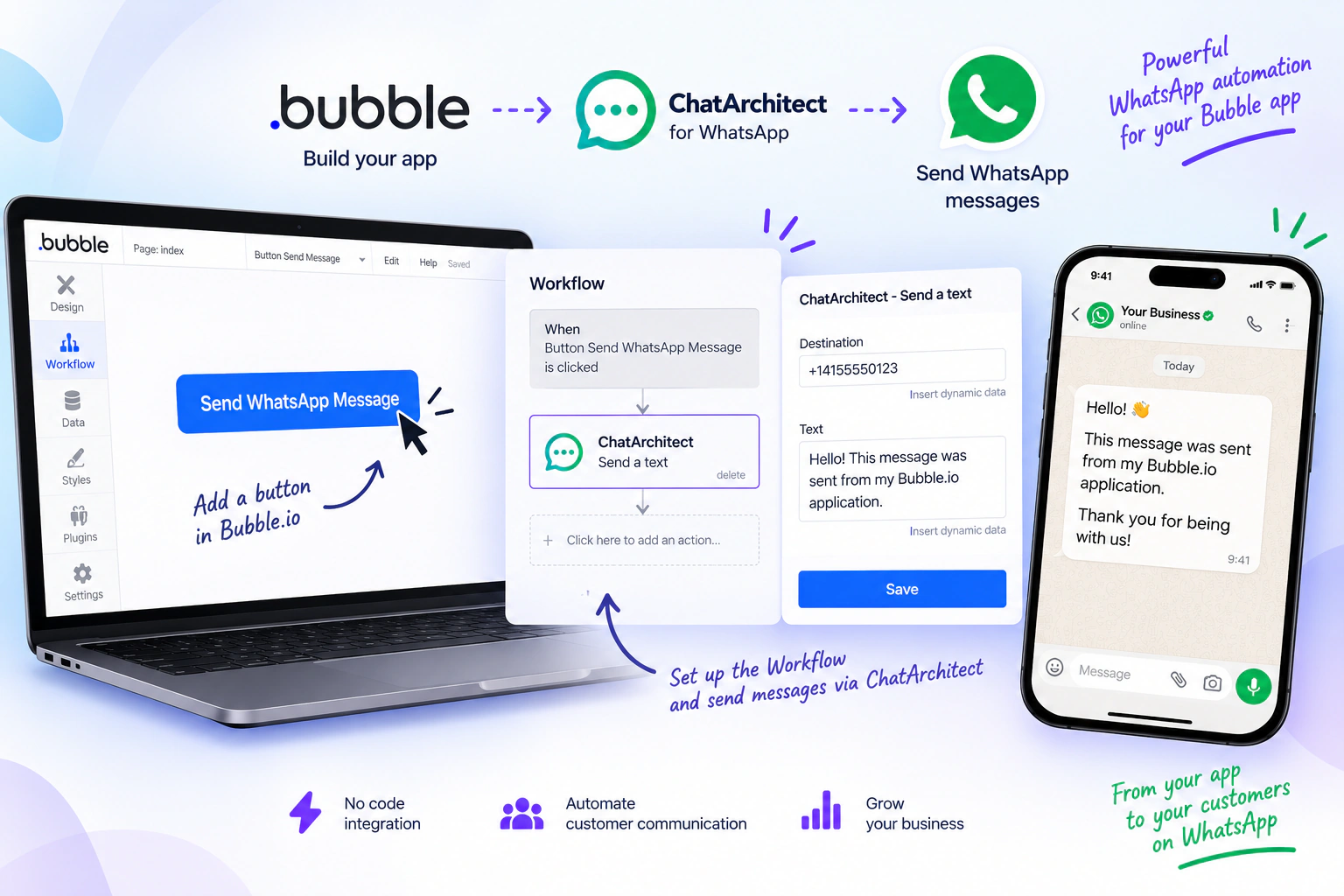
Bubble.io makes it possible to build web applications without writing extensive code. With the ChatArchitect integration, you can also connect WhatsApp to your Bubble.io application and send messages directly from a Workflow.
In this guide, we’ll walk through how to install the ChatArchitect plugin, connect your account using your APP ID and APP SECRET, and send your first WhatsApp message from Bubble.io.
What You’ll Need
Before getting started, make sure you have:
- A Bubble.io application
- A ChatArchitect account
- Your APP ID and APP SECRET
- A WhatsApp connection configured in ChatArchitect
Once everything is ready, you can start setting up the integration in Bubble.io.
Step 1: Add a Button in Bubble.io
Open your application in the Bubble.io editor and add a Button element to the page.
This button will trigger the Workflow responsible for sending your WhatsApp message.
For example, you can name the button:
Send WhatsApp Message
Step 2: Create a Workflow for the Button
Click on the button you just created and select:
Start / Edit Workflow
Bubble.io will open the Workflow editor, where you can define what should happen when a user clicks the button.
Step 3: Install the ChatArchitect Plugin
Inside the Workflow editor, click the Plus button and navigate to:
Plugins → Install more plugins action
This will open the Bubble.io plugin marketplace.
Search for:
ChatArchitect.com for WhatsApp
You may need to select all relevant search filters before the plugin appears in the results.
Once you find the ChatArchitect integration, click Install.
The plugin will now be available in your Bubble.io application.
Step 4: Connect ChatArchitect
After installing the plugin, open the Plugins tab in Bubble.io and locate the ChatArchitect integration.
Enter your credentials as follows:
Username: Your APP ID
Password: Your APP SECRET
These credentials allow your Bubble.io application to communicate with ChatArchitect and send WhatsApp messages.
Keep your APP SECRET private and never expose it publicly or share it with unauthorized users.
Step 5: Add the Send Message Action
Return to the Workflow tab.
Click:
Click here to add an action
Then select:
Plugins → Send a text
This adds the ChatArchitect WhatsApp messaging action to your Workflow.
Step 6: Enter the Recipient and Message
Next, configure the Send a text action.
In the Destination field, enter the recipient.
In the Text field, enter the message you want to send.
For example:
Hello! This message was sent from my Bubble.io application.
You can also use dynamic Bubble.io data instead of entering these values manually. For example, the recipient's phone number can come from your database, while the message itself can be generated from information submitted through a form.
Step 7: Test Your WhatsApp Message
Once the Workflow is configured, click the Preview button in the upper-right corner of the Bubble.io editor.
You will be redirected to the preview version of your application.
Click the button you created earlier.
Bubble.io will trigger the Workflow, and ChatArchitect will send the message to the specified recipient via WhatsApp.
If everything is configured correctly, the recipient should receive the WhatsApp message.
How It Works
You have now connected Bubble.io with ChatArchitect and created a basic Workflow for sending WhatsApp messages.
The process is simple:
User clicks the button → Bubble.io triggers the Workflow → ChatArchitect processes the request → The message is sent via WhatsApp
This is just a basic example. You can use the same integration to automate WhatsApp communication based on many different events in your Bubble.io application.
For example, you can automatically send WhatsApp messages when:
- A new user registers
- A customer places an order
- Someone submits a form
- An order or request changes status
- An appointment is confirmed
- Another event occurs inside your application
By combining Bubble.io, ChatArchitect, and WhatsApp, you can add WhatsApp messaging to your no-code applications and automate customer communication without building the entire integration from scratch.


